Sometimes you need very simple app to perform a task. But when you look for what you want in the “Playstore” you will find overwhelming number of apps loaded with numerous functionalities and mostly with ads. Many of the functions of an app are useless to you.
The story starts with my daughter of class 5 asking me to test her spelling ability. I was supposed to pronounce each of the 60 multi-syllable English words randomly and then check whether she has written them correctly. It was certainly a huge task for me. Further, it was sure that she would laugh at my absurd pronuciation. Then, I searched the Playstore which produced obvious results as stated above.
Finally, I wrote this simple app myself. The pain of creating the app produced fruit. I used it not only for spelling test but also for multiplication table by simply creating a text file as below:
6 1 za
6 2 za
6 3 za
and so on.
You can also play bingo by listing all the bingo numbers.
It was much easier for me to create an app myself than oblige with her request. Then, I started with a simple flow of works to be done by my app as listed below.
Creating an Android App is as simple as it looks.
The following sections describe how the three files need to be modified after creating a project in Andorid Studio, which user is supposed to be familiar with.
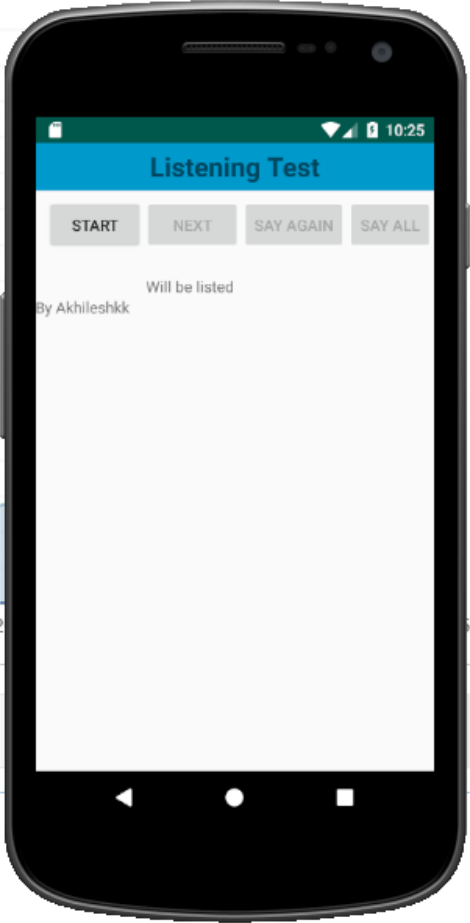
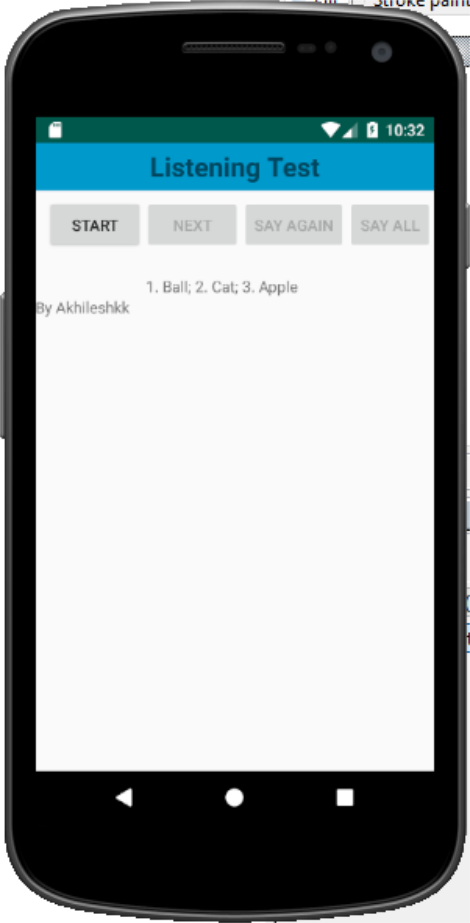
There are only two simple user interfaces as shown below. First one shows the initial screens and second one is the list of word which appears after starting the app.
I decided that the app creates a simple text file itself when started. For that, a permission has to be provided in the AndroidManifest file. This is the only permission which is needed for this app. The android manifest file should be modified as follows.
<?xml version="1.0" encoding="utf-8"?>
<manifest xmlns:android="http://schemas.android.com/apk/res/android"
    package="com.akhileshkk.listeningtest">

    <application
        android:allowBackup="true"
        android:icon="@mipmap/ic_launcher"
        android:label="@string/app_name"
        android:roundIcon="@mipmap/ic_launcher_round"
        android:supportsRtl="true"
        android:theme="@style/AppTheme">
        <activity
            android:name=".MainActivity"
            android:label="@string/app_name"
            android:theme="@style/AppTheme.NoActionBar">
            <intent-filter>
                <action android:name="android.intent.action.MAIN" />

                <category android:name="android.intent.category.LAUNCHER" />
            </intent-filter>
        </activity>
    </application>
<uses-permission android:name="android.permission.WRITE_EXTERNAL_STORAGE"/>
</manifest>
After creating an empty activity project in Android Studio, only line needs to be added as shown above is the line starting with uses-permission in the above code, i.e,
<uses-permission android:name="android.permission.WRITE_EXTERNAL_STORAGE"/>
I have kept the layout very simple. The interface has:
<RelativeLayout xmlns:android="http://schemas.android.com/apk/res/android"
    xmlns:app="http://schemas.android.com/apk/res-auto"
    xmlns:tools="http://schemas.android.com/tools"
    android:layout_width="match_parent"
    android:layout_height="match_parent"
    tools:context=".MainActivity" >

    <TextView
        android:id="@+id/textView"
        android:layout_width="match_parent"
        android:layout_height="43dp"
        android:background="@android:color/holo_blue_dark"
        android:gravity="center_horizontal|center_vertical"
        android:text="@string/app_name"
        android:textSize="24sp"
        android:textStyle="bold"
        tools:textColor="@android:color/holo_orange_light" />

    <LinearLayout
        android:id="@+id/laylinear"
        android:layout_width="match_parent"
        android:layout_height="60dp"
        android:layout_marginTop="40dp"
        android:orientation="horizontal">

        <Button
            android:id="@+id/btnStart"
            android:layout_width="wrap_content"
            android:layout_height="wrap_content"
            android:layout_alignParentTop="true"
            android:layout_marginLeft="10dp"
            android:layout_marginTop="10dp"
            android:text="Start" />

        <Button
            android:id="@+id/btnNext"
            android:layout_width="wrap_content"
            android:layout_height="wrap_content"
            android:layout_marginTop="10dp"
            android:text="Next" />

        <Button
            android:id="@+id/btnSayAgain"
            android:layout_width="wrap_content"
            android:layout_height="wrap_content"
            android:layout_marginTop="10dp"
            android:text="Say Again" />

        <Button
            android:id="@+id/btnSayAll"
            android:layout_width="wrap_content"
            android:layout_height="wrap_content"
            android:layout_marginTop="10dp"
            android:text="Say all" />
    </LinearLayout>

    <TextView
        android:id="@+id/txtWordList"
        android:layout_width="wrap_content"
        android:layout_height="wrap_content"
        android:layout_marginLeft="100dp"
        android:layout_marginTop="120dp"
        android:text="Will be listed" />

    <LinearLayout
        android:layout_width="match_parent"
        android:layout_height="20dp"
        android:layout_below="@id/txtWordList"
        android:orientation="horizontal">

        <TextView
            android:id="@+id/textView2"
            android:layout_width="wrap_content"
            android:layout_height="wrap_content"
            android:text="By Akhileshkk" />
    </LinearLayout>

</RelativeLayout>There is a single java source code file which is needed for my task and it is named as MainActivity.java.
In the recent version of Android, we need user permission in the code itself. Therefore, we create a function in MainActivity.java (which will be accessed by onCreate function) as follows:
   public boolean checkPermission(){
        if (Build.VERSION.SDK_INT >= Build.VERSION_CODES.M) {
            if (checkSelfPermission(android.Manifest.permission.WRITE_EXTERNAL_STORAGE)
                    == PackageManager.PERMISSION_GRANTED) {
                return true;
            } else {

                ActivityCompat.requestPermissions(this, new String[]{Manifest.permission.WRITE_EXTERNAL_STORAGE}, 1);
                return false;
            }
        }
        else { //permission is automatically granted on sdk<23 upon installation
            return true;
        }
}Following function creates a sample text file with three words: apple, ball and cat. The file is created as list.txt under Vocab directory. The directory and text file is created when the app is opened for the first time.
public void generateVocab() {
        try {
            File root = new File(Environment.getExternalStorageDirectory(), "Vocab");
            if (!root.exists()) {
                root.mkdirs();
            }else{
                return;
            }
            String sFileName = "list.txt";
            String sBody = "Apple\nBall\nCat\n";
            File dicfile = new File(root, sFileName);
            FileWriter writer = new FileWriter(dicfile);
            writer.append(sBody);
            writer.flush();
            writer.close();
        } catch (IOException e) {
            e.printStackTrace();
        }
}Create TextToSpeech object inside onCreate function as:
ttobj=new TextToSpeech(getApplicationContext(),
        new TextToSpeech.OnInitListener() {
            @Override
            public void onInit(int status) {
                if(status != TextToSpeech.ERROR){
                    ttobj.setLanguage(Locale.US);
                    ttobj.setSpeechRate(0.7f);
                }
            }
}); public void createWordList(){
File rootDir = Environment.getExternalStorageDirectory();
File root = new File(rootDir, "Vocab");
String sFileName = "list.txt";
if (!root.exists()) {
this.generateVocab();
}
String word;
wordList=new ArrayList<>();
FileReader reader;
try {
reader = new FileReader(root.getAbsolutePath()+
"/"+ sFileName);
BufferedReader bRead = new BufferedReader(reader);
while ((word=bRead.readLine()) != null)
{
wordList.add(word);
}
bRead.close();
Collections.shuffle(wordList);
}
catch (FileNotFoundException e) {
e.printStackTrace();
}catch (IOException e) {
e.printStackTrace();
}
}A very simple function used to speak a word using ttobj, the TextToSpeech object as follows:
public void speakText(String toSpeak){
//String toSpeak = write.getText().toString();
Toast.makeText(getApplicationContext(), toSpeak,
Toast.LENGTH_SHORT).show();
ttobj.speak(toSpeak, TextToSpeech.QUEUE_FLUSH, null, null);
}2.4.6 Combine the list of words for final display The spoken words need to be listed in order after completion of the dictation. It can be done using the code listed below:
public static String joinString(Iterable<String> strings) {
String jStr = "";
int i = 1;
for(String s: strings) {
if (i == 1){
jStr = String.format("%d. %s", i, s);
}else {
jStr = String.format("%s; %d. %s", jStr, i, s);
}
i ++;
}
return jStr;
}Now we have all the functions ready for use inside the onCreate function. Access all the functions created earlier and create onClick listener for each button. The complete code is listed below.
package com.akhileshkk.listeningtest;
//Imports
import android.Manifest;
import android.content.pm.PackageManager;
import android.os.Build;
import android.os.Bundle;
import android.os.Environment;
import android.support.v4.app.ActivityCompat;
import android.support.v7.app.AppCompatActivity;
import android.view.View;
import android.view.Menu;
import android.view.MenuItem;
import android.widget.Button;
import android.widget.TextView;
import android.speech.tts.TextToSpeech;
import android.widget.Toast;
import android.os.SystemClock;
import java.io.BufferedReader;
import java.io.File;
import java.io.FileNotFoundException;
import java.io.FileReader;
import java.io.FileWriter;
import java.io.IOException;
import java.util.ArrayList;
import java.util.Collections;
import java.util.Locale;
public class MainActivity extends AppCompatActivity {
TextToSpeech ttobj;
private ArrayList<String>wordList;
private ArrayList<String>wordListCheck;
private String currentWord;
@Override
protected void onCreate(Bundle savedInstanceState) {
super.onCreate(savedInstanceState);
setContentView(R.layout.activity_main);
/* Check for permission (Write permission)*/
checkPermission();
/*------
Buttons
*/
final Button startButton = findViewById(R.id.btnStart);
final Button nextButton = findViewById(R.id.btnNext);
final Button againButton = findViewById(R.id.btnSayAgain);
final Button allButton = findViewById(R.id.btnSayAll);
final TextView txtWordList = findViewById(R.id.txtWordList);
nextButton.setEnabled(false);
againButton.setEnabled(false);
allButton.setEnabled(false);
wordListCheck = new ArrayList<>();
//Create word list by reading text file
this.createWordList();
//Start button click ->dictation
startButton.setOnClickListener(new View.OnClickListener(){
@Override
public void onClick(View v) {
String word = wordList.remove(0);
speakText(word);
wordListCheck.add(word);
currentWord=word;
v.setEnabled(false);
nextButton.setEnabled(true);
againButton.setEnabled(true);
allButton.setEnabled(true);
}
});
//Speak next word
nextButton.setOnClickListener(new View.OnClickListener(){
@Override
public void onClick(View v) {
if(wordList.isEmpty()){
startButton.setEnabled(true);
speakText("finished");
nextButton.setEnabled(false);
againButton.setEnabled(false);
allButton.setEnabled(false);
txtWordList.setText(joinString(wordListCheck));
createWordList();
wordListCheck = new ArrayList<>();
return;
}
String word = wordList.remove(0);
wordListCheck.add(word);
speakText(word);
currentWord=word;
}
});
againButton.setOnClickListener(new View.OnClickListener(){
@Override
public void onClick(View v) {
speakText(currentWord);
}
});
allButton.setOnClickListener(new View.OnClickListener(){
@Override
public void onClick(View v) {
int n=wordList.size();
for(int i=0;i<n;i++){
String word = wordList.remove(0);
speakText(word);
SystemClock.sleep(2000);
speakText(word);
SystemClock.sleep(11000);
wordListCheck.add(word);
if(wordList.isEmpty()){
startButton.setEnabled(true);
speakText("finished");
nextButton.setEnabled(false);
againButton.setEnabled(false);
allButton.setEnabled(false);
txtWordList.setText(joinString(wordListCheck));
wordListCheck = new ArrayList<>();
createWordList();
return;
}
}
}
});
ttobj=new TextToSpeech(getApplicationContext(),
new TextToSpeech.OnInitListener() {
@Override
public void onInit(int status) {
if(status != TextToSpeech.ERROR){
ttobj.setLanguage(Locale.US);
ttobj.setSpeechRate(0.7f);
}
}
});
}
public static String joinString(Iterable<String> strings) {
String jStr = "";
int i = 1;
for(String s: strings) {
if (i == 1){
jStr = String.format("%d. %s", i, s);
}else {
jStr = String.format("%s; %d. %s", jStr, i, s);
}
i ++;
}
return jStr;
}
public void speakText(String toSpeak){
//String toSpeak = write.getText().toString();
Toast.makeText(getApplicationContext(), toSpeak,
Toast.LENGTH_SHORT).show();
ttobj.speak(toSpeak, TextToSpeech.QUEUE_FLUSH, null, null);
}
   public void createWordList(){
        File rootDir = Environment.getExternalStorageDirectory();
        File root = new File(rootDir, "Vocab");
        String sFileName = "list.txt";
        if (!root.exists()) {
            this.generateVocab();
        }
        String word;
        wordList=new ArrayList<>();
        FileReader reader;
        try {
            reader = new FileReader(root.getAbsolutePath()+
                    "/"+ sFileName);
            BufferedReader bRead = new BufferedReader(reader);
            while ((word=bRead.readLine()) != null)
            {
                wordList.add(word);
            }
            bRead.close();
            Collections.shuffle(wordList);
        }
        catch (FileNotFoundException e) {
            e.printStackTrace();
        }catch (IOException e) {
            e.printStackTrace();
        }
   }
public void generateVocab() {
try {
File root = new File(Environment.getExternalStorageDirectory(), "Vocab");
if (!root.exists()) {
root.mkdirs();
}else{
return;
}
String sFileName = "list.txt";
String sBody = "Apple\nBall\nCat\n";
File dicfile = new File(root, sFileName);
FileWriter writer = new FileWriter(dicfile);
writer.append(sBody);
writer.flush();
writer.close();
} catch (IOException e) {
e.printStackTrace();
}
}
public boolean checkPermission(){
if (Build.VERSION.SDK_INT >= Build.VERSION_CODES.M) {
if (checkSelfPermission(android.Manifest.permission.WRITE_EXTERNAL_STORAGE)
== PackageManager.PERMISSION_GRANTED) {
return true;
} else {
ActivityCompat.requestPermissions(this, new String[]{Manifest.permission.WRITE_EXTERNAL_STORAGE}, 1);
return false;
}
}
else { //permission is automatically granted on sdk<23 upon installation
return true;
}
}
@Override
public boolean onCreateOptionsMenu(Menu menu) {
// Inflate the menu; this adds items to the action bar if it is present.
getMenuInflater().inflate(R.menu.menu_main, menu);
return true;
}
@Override
public boolean onOptionsItemSelected(MenuItem item) {
// Handle action bar item clicks here. The action bar will
// automatically handle clicks on the Home/Up button, so long
// as you specify a parent activity in AndroidManifest.xml.
int id = item.getItemId();
//noinspection SimplifiableIfStatement
if (id == R.id.action_settings) {
return true;
}
return super.onOptionsItemSelected(item);
}
}